
On this page
Processing Orders
After you have processed your orders through your shipping software, you will need to upload the confirmation information to VendorBridge in order to mark the orders as shipped and close them out in the system. For instructions on processing your orders through UPS WorldShip and FedEx Ship Manager, please refer to the following guides, located in Help Centers Center’s VendorBridge Guides:
For HSN Vendors with Integrated UPS Labels using UPS Auto-Close
For HSN Vendors with Integrated UPS Labels using UPS WorldShip
For Non-HSN Vendors shipping via UPS
For Non-HSN Vendors shipping via FedEx
To Upload Your Export File
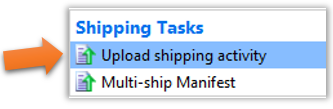
- Click on the link labeled “Upload shipping activity” on the home page, as shown below:
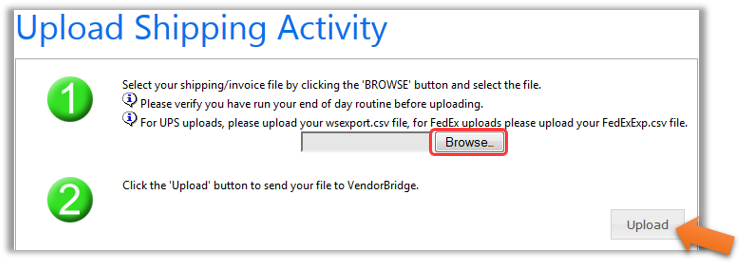
- Click on “Browse…”, as shown below in Step 4, and a “Choose File” window will open.
- Under “Look In:” press on the drop-down arrow and select “Desktop”. Under “Files of type:” press the dropdown arrow and select “All Files (*.*)”. Select your export file and click “Open”.
- The text box next to the Browse Button on VendorBridge will now be filled in with the appropriate path to your file. Now click on “Upload”, as shown below
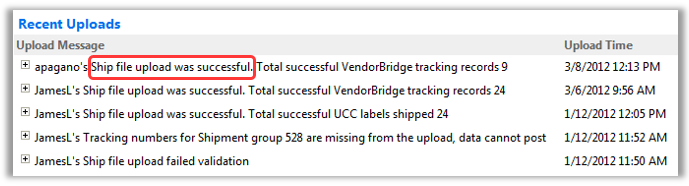
- You will now see a new message appear under the upload menu in the “Recent Uploads” section. These messages are sorted by date, the most recent being located at the top, and will include the username of the individual who completed the particular upload. If VendorBridge successfully received your file, you will see “Ship file upload was successful.” as shown below. If you do not receive the success message, your shipping activity has not been uploaded. Please contact the Mercury Commerce Staff to assist you further.
Still stuck?
Tell us what you tried and we will take it from there. We will know which article you were reading.