
Reconciling Failed Shipments
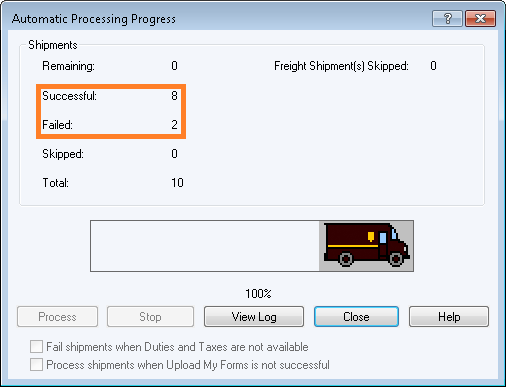
If you have any shipments in the "Failed" field, these will need to be reconciled directly in UPS WorldShip. Click "Close" then proceed to the next step.
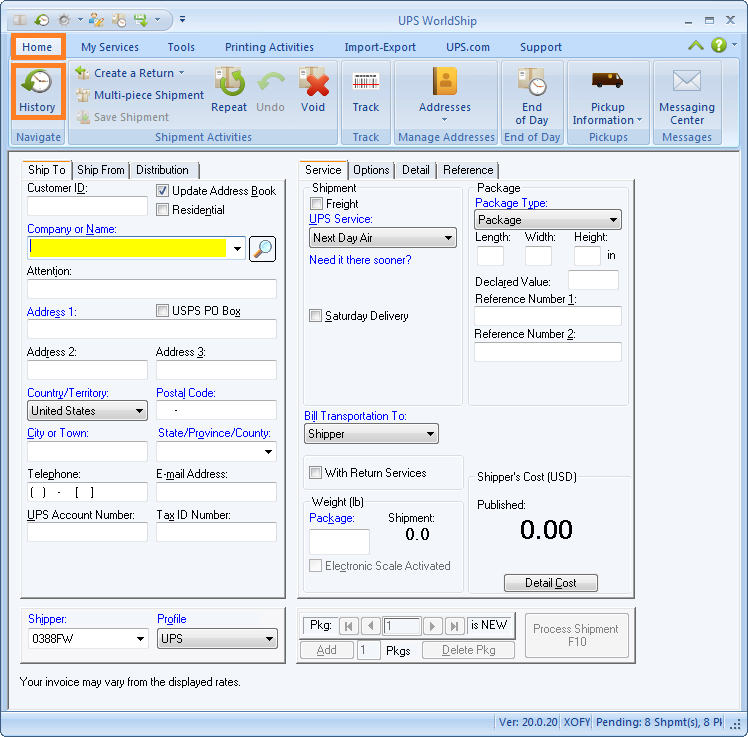
- To reconcile any failed shipments, you will need to navigate back to the "Home" tab in UPS WorldShip, then click on the "History" icon as shown below:
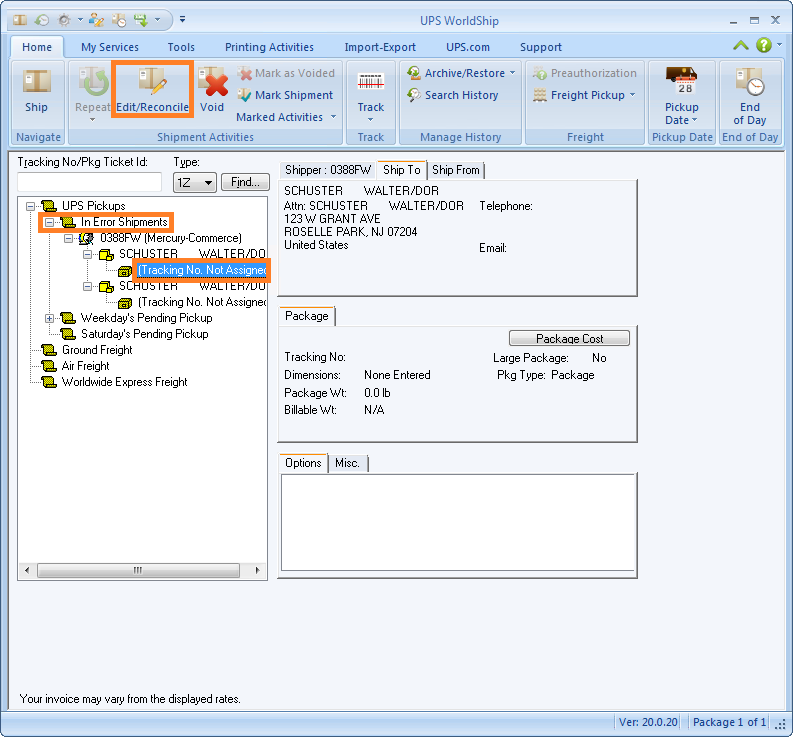
- Once you are on the History screen, you will need to expand the plus (+) sign next to the "In Error Shipments" section. Keep clicking the plus sign down the tree view until you see the tracking number beneath the customer's name. Click on it so that the tracking number is highlighted. (Please note that you may see "Tracking No. Not Assigned" as shown below, in which case be sure to select it by click on the text). Next, click the "Edit/Reconcile" icon on the toolbar ribbon:
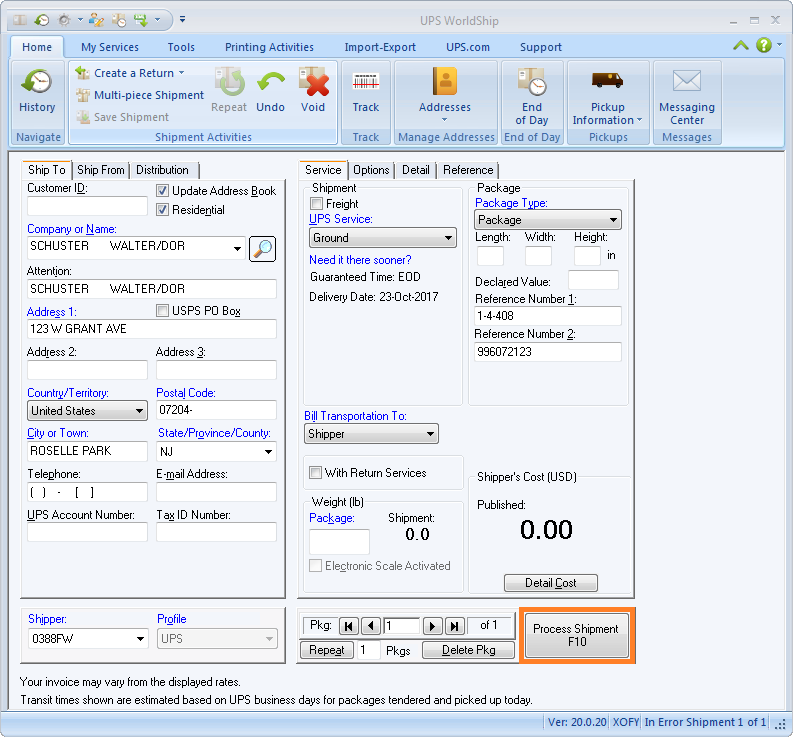
- The order information will then populate on the main shipping screen of UPS WorldShip. Click "Process Shipment" in the bottom right corner, as shown below:
- UPS WorldShip will then suggest something that needs to be changed. Most commonly it is an address issue, in which case UPS WorldShip will provide a list of suggestions. Select the suggestion that you believe to be most appropriate, then click "Choose" as shown below.
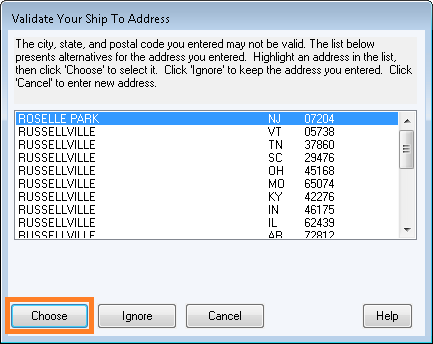
Next, click "Process Shipment" in the bottom right corner. If there are any additional changes the UPS WorldShip suggests, it will notify you to take action again. Once all issues are resolved, clicking "Process Shipment" for the final time will clear all of the order information from the screen. The shipping label for the shipment will print at this time.
Repeat Steps 11-15 for each shipment that is listed in the "In Error Shipments" list. Once a shipment has been successfully reconciled, it will be removed from this list. When the list is empty, you may proceed to the next step.
Still stuck?
Tell us what you tried and we will take it from there. We will know which article you were reading.