
On this page
Please Note: You will need to be sure that you do not have any un-applied cross references before you begin to print your orders. If you see the “You are missing information for X product(s).” message, you will need to add the proper cross reference information before you are permitted to begin printing. Please see the “Quick Cross References” article in the VendorBridge Guides section for full instructions on applying cross references.
HSN Vendors
Please refer to the “UPS WorldShip Integrated Label Manual” guide located in the Assistance Center’s Partnerships and Manuals section of VendorBridge.
All Other Vendors
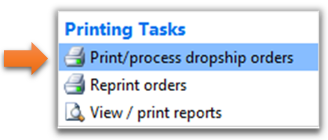
Log on to VendorBridge and click “Print/process drop ship orders” as shown below:
To print orders, click on Hamburger menu under “Print Action.”

Printing options will then appear. Click the “Print W/UPS Label” option, as shown below.

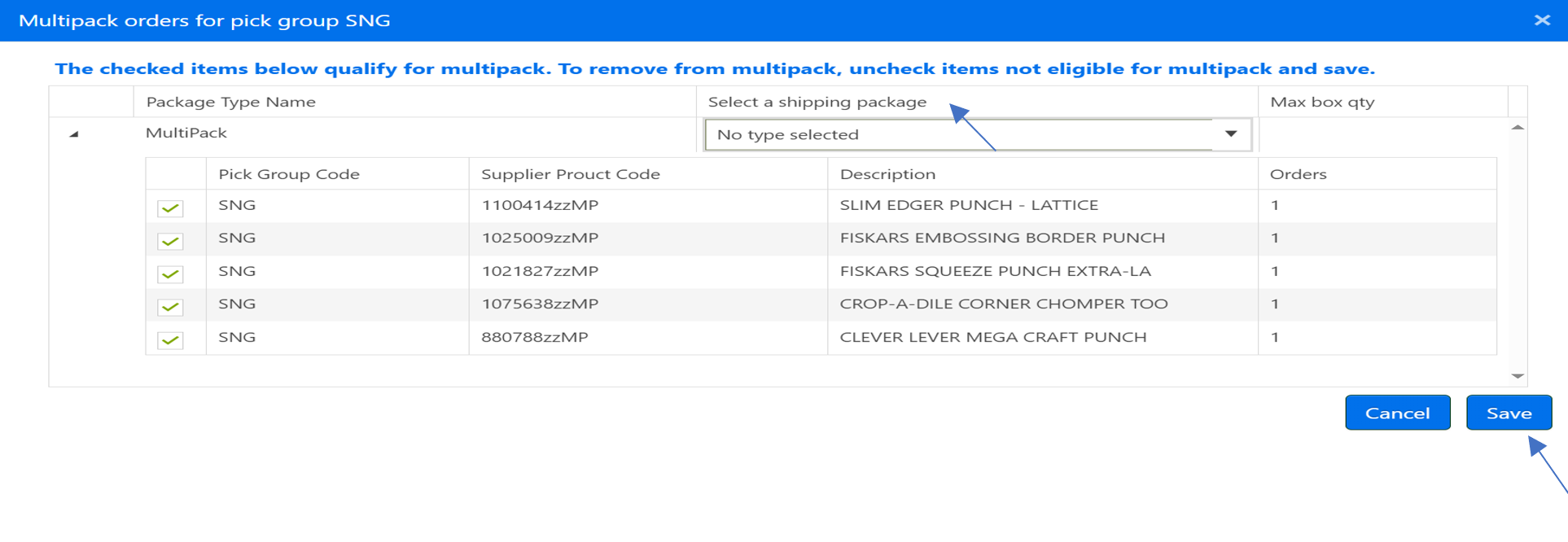
For Multi Pack vendors ONLY, follow these steps to sort multipack orders:
- On the Multi Pack popup screen, select Multi Pack from the “select a shipping package” dropdown.
- Click “Save”.
- Repeat step 3.
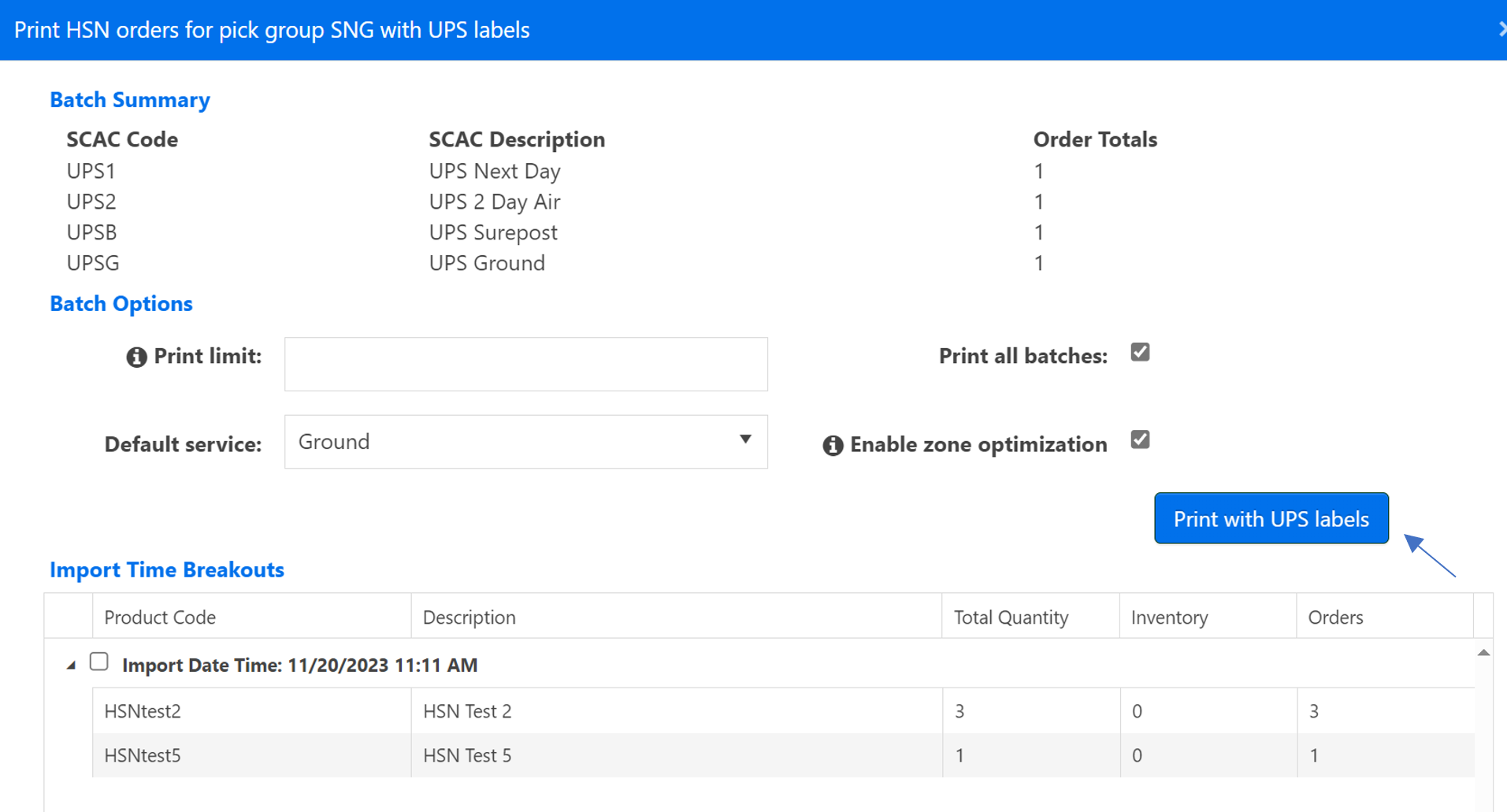
Click “Print with UPS Labels.”
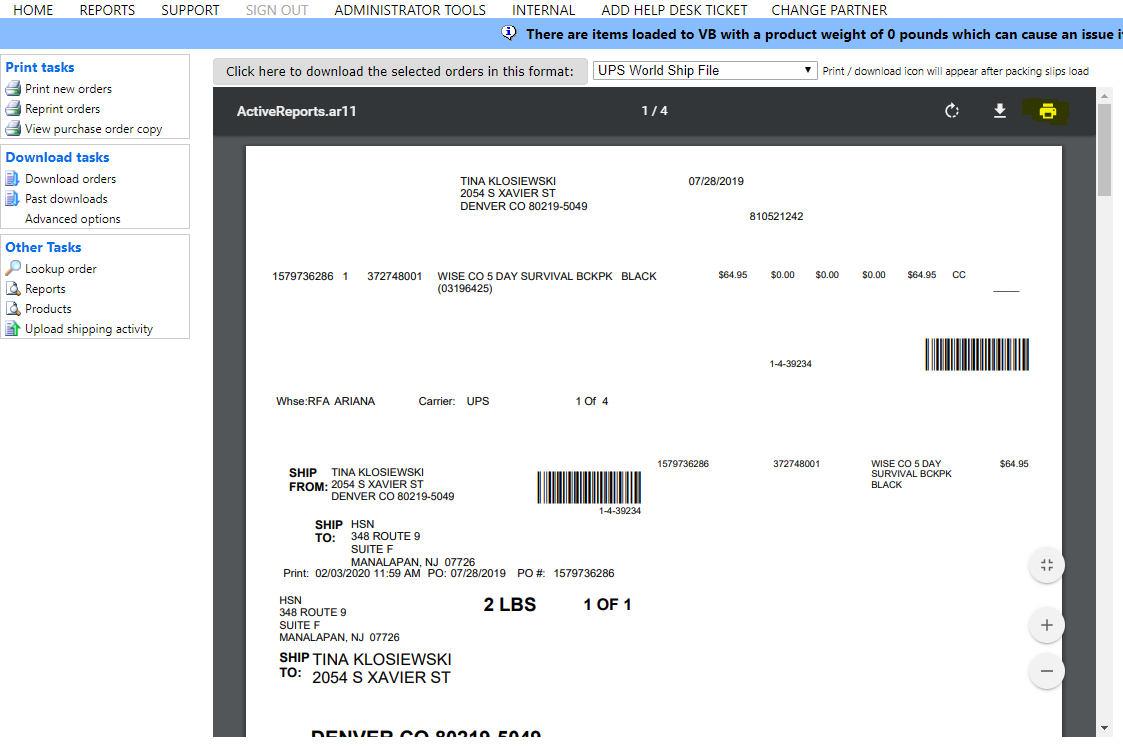
The packing slip will be generated and is now ready to be printed. Click the printer icon near the top of the screen to send your orders to the printer, as shown below. Please Note: If you are using Internet Explorer, you may need to allow the “Active X Data Dynamics Control” to install in order to view the packing slip.
Still stuck?
Tell us what you tried and we will take it from there. We will know which article you were reading.