
Adding Missing Product Information
If on the VendorBridge homepage you receive a message that states “You are missing information for # product(s)”, as shown below, you can use these steps to quickly add the necessary product information to the site. While this message remains on the home page, you will be unable to print and process any new orders until all of the cross-references have been applied.

Click on the notification, as shown above.
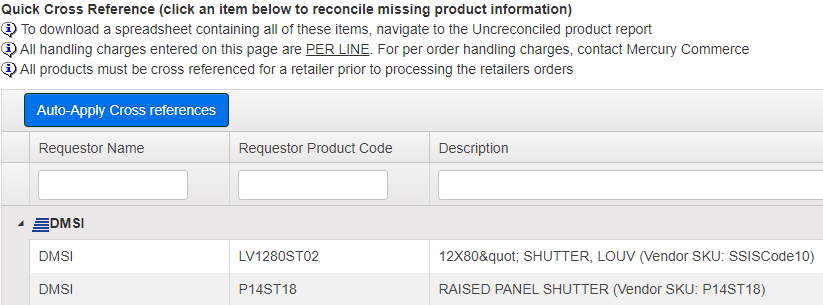
You will then be taken to a page that lists all of the incoming Retailer product codes and product descriptions that need to be cross-referenced, as shown below. Clicking on any of the line items will expand the product to show more information. To begin adding the cross-reference to your own internal product information, click “Add new item” in the expanded "Product Detail" view, as shown below:
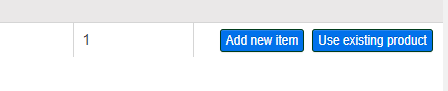
The view will once again be expanded to show the fields available for data entry, as shown below.
(Adding a New item) insert all information in the fields.
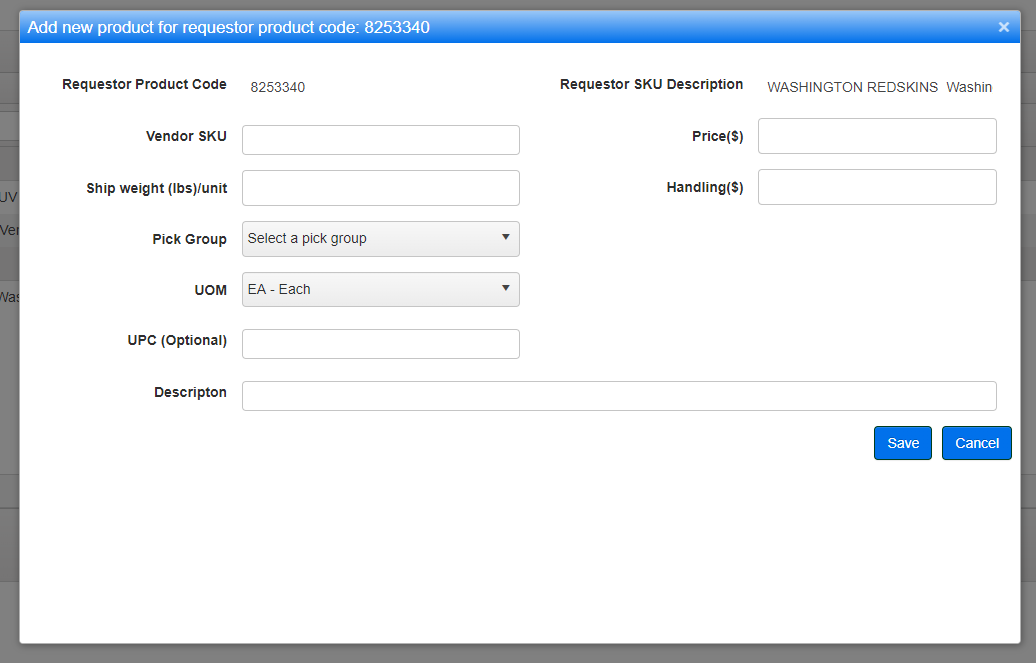
(Use Existing Product) Search using Product code,UPC, Product Description
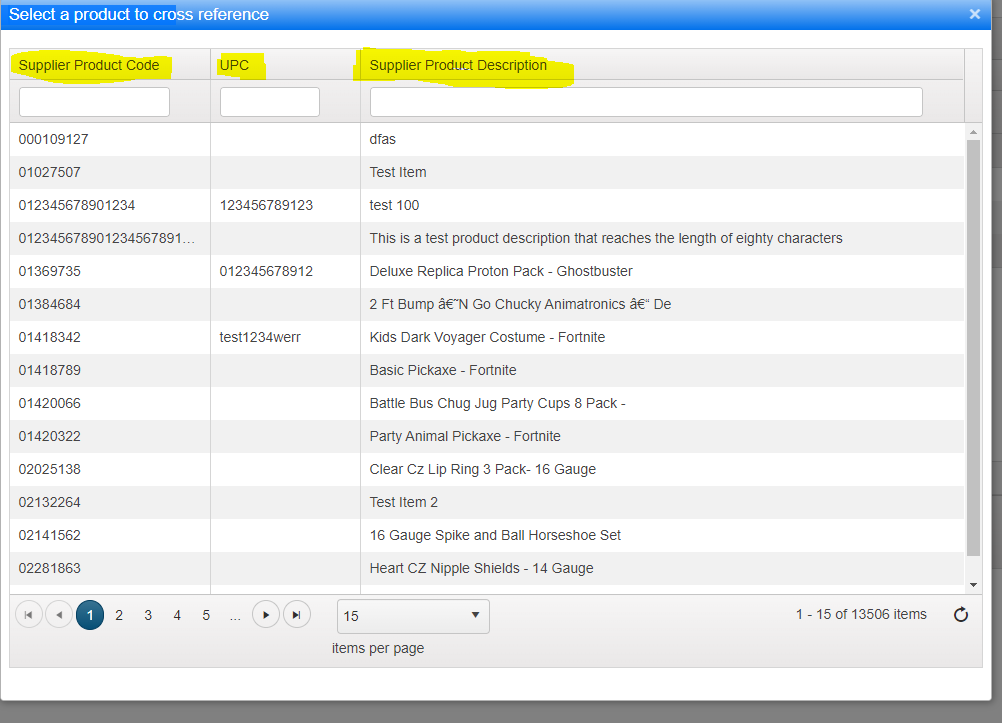
- Fill in all of the fields in this view. All fields are required:
- Vendor Product Code: This should be the product code that you use internally to identify your product.
- Description: Enter a description for the item that clearly defines the product, including any size/color variations. Note: You may copy and paste the Retailer’s Product Code and Description ONLY if you do not use another internal product code for your company.
- Pick Group: Select the pick group to which this product should be assigned.
- Unit of measure: This should always be left as “EA-Each” unless otherwise directed by Mercury Commerce, Inc.
- Ship Weight(lbs)/unit: Enter the numeric value, up to two decimal places, of the shipping weight in pounds per unit WITHOUT any added abbreviations in the field.
- Price: Enter the price of the item with a numeric value only, up to two decimal places.
- Handling: Enter the handling price for the item with a numeric value only, up to two decimal places.
- Once you have completed filling in your information, click the “Save” button in the bottom right corner, as shown above. Clicking “Save” will remove the item from the Quick Cross Reference list. Once you have completed applying all of the cross references you will be able to begin printing and processing your orders. Please see the "How do I print orders?" article in the "VendorBridge FAQ" section for further instructions.
Still stuck?
Tell us what you tried and we will take it from there. We will know which article you were reading.