
When Processing your order's, if you realize you have to cancel a line on the order, or ship an item at a later time, you can create a Backorder in VendorBridge. The Backorder function will split an order in VendorBridge into 2 different orders under the same PO number (This will only apply for any orders which have more than one line, or a line with a quantity ordered greater than 1)
To process a Backorder in VendorBridge:
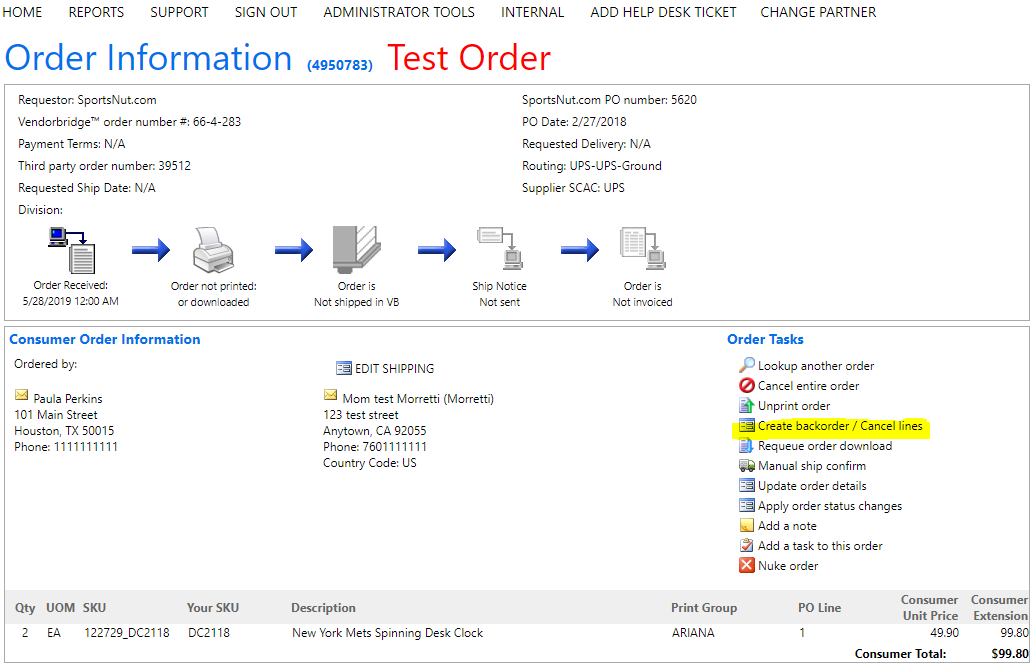
- Lookup the order-Select (Create Back-order/ Cancel Lines) on the order screen.
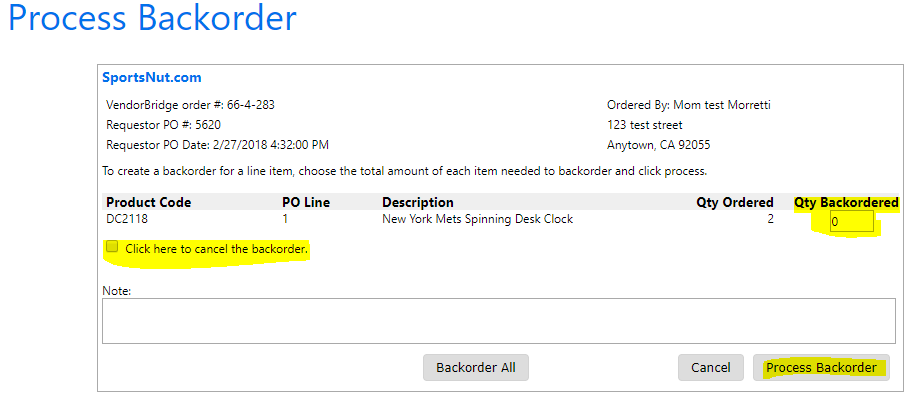
Enter the quantity of the line or line(s) which need to be Backordered into a separate order in VendorBridge and removed from the original order.
If the Backorder being created needs to be cancelled, click the option to cancel the Backorder so the new order introduced to Vendorbridge is automatically cancelled.
Click Process Backorder to apply the Backorder in VendorBridge.
Still stuck?
Tell us what you tried and we will take it from there. We will know which article you were reading.