
On this page
Uploading Inventory Amounts
Note( Please make sure you have your products uploaded before you do the inventory upload.)
Inventory uploads are only required if the retailer requests that inventory should be transmitted to them on a regular basis.
Please Note: Inventory transmissions must initially be configured byMercury Commerce, Inc. Staff before the feature is enabled for your partnership with the retailer. Once the initial configuration is complete, VendorBridge will automatically transmit your inventory amounts to the retailer accordingly.
Spreadsheet Method (for Updating Multiple Products)
From the VendorBridge Home Page, under the "Maintenance" header, click the link for "Upload Inventory", as shown below.
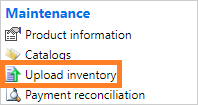
Note: The Upload Inventory link is also available in the "Product Information" section.Follow the instructions listed on the "Upload Inventory page" in Step 1, as shown below. You may download the appropriate template that is reference by clicking the "Download Template" button.
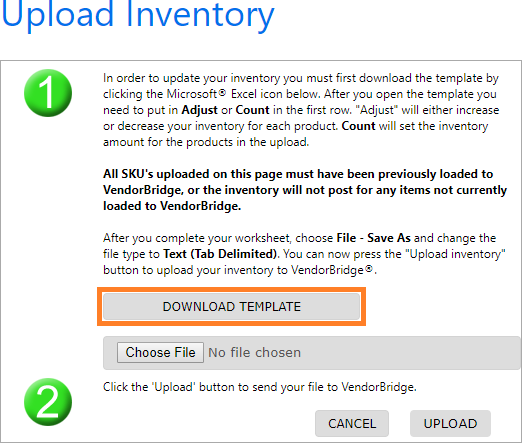
The template that you have just downloaded from VendorBridge will include additional instructions on the information that should be entered, as well as how to properly save the template in order to prepare the file to be uploaded to VendorBridge. Please be sure to review these instructions carefully before proceeding to the next step.
Once you have the template saved in the appropriate file format, you may upload the file on the "Upload Inventory" page in Step 2, as shown below. After you have selected the file that you wish to upload, be sure to click the "Upload" button.
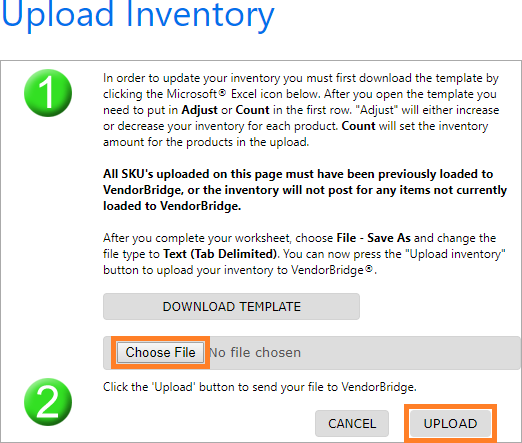
A status message will appear at the bottom of the "Upload Inventory" page in the Recent Inventory Uploads section. The message will confirm whether or not the upload was received successfully or if there are any issues with validating the file.
If the Upload is Received Successfully
Please allow up to 15 minutes for VendorBridge to process the information and update the products accordingly.
If the Upload Displays an Error
If you receive an error on the upload that you are unsure how to resolve, please contact Mercury Commerce, Inc. for further assistance in troubleshooting the issue.
Manual Method (for Updating Products Individually)
- Please follow the instructions for "Manual Edit" found in the "How do I edit product information?" article to navigate to the product for which you would like to update inventory.
- Navigate to the "Inventory" tab of the Editing Product page. You will be able to view the current inventory that is set for the product as well as update the amount, as shown below.
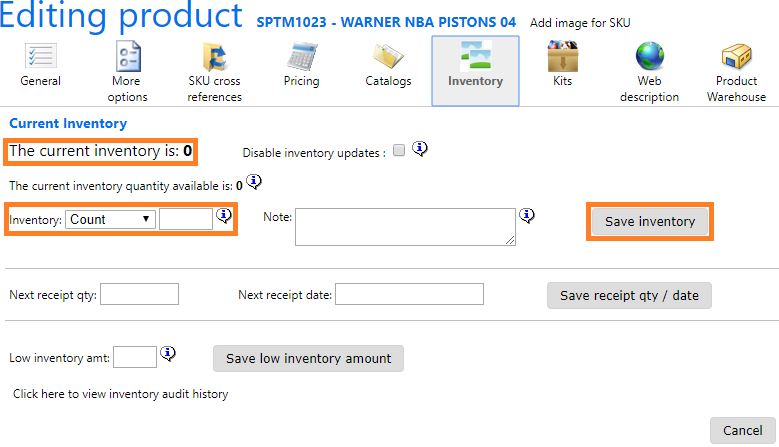
- Once you have entered the new amount, click the "Save Inventory" button to the right. The product will update, and you will see the "Current Inventory" change to the amount that you had entered.
Still stuck?
Tell us what you tried and we will take it from there. We will know which article you were reading.