
Tracking Retailer Remittances
Please Note: Your retailer must participate in sending remittance information via EDI in order for VendorBridge to offer Remittance Reports.
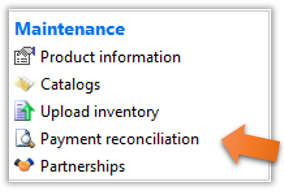
- From the home page, click on the “Payment reconciliation” link under the “Maintenance” header, as shown below.
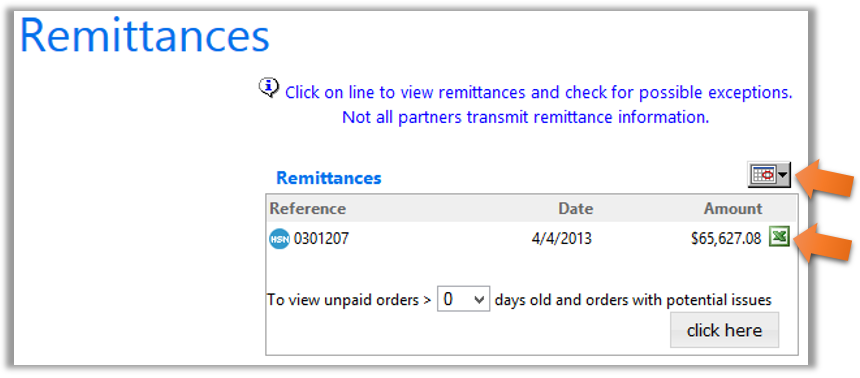
- You will then be brought to the “Remittances” page, as shown below. On this page, you will see the check number, check date, and check amount for all payments being processed for the current month.
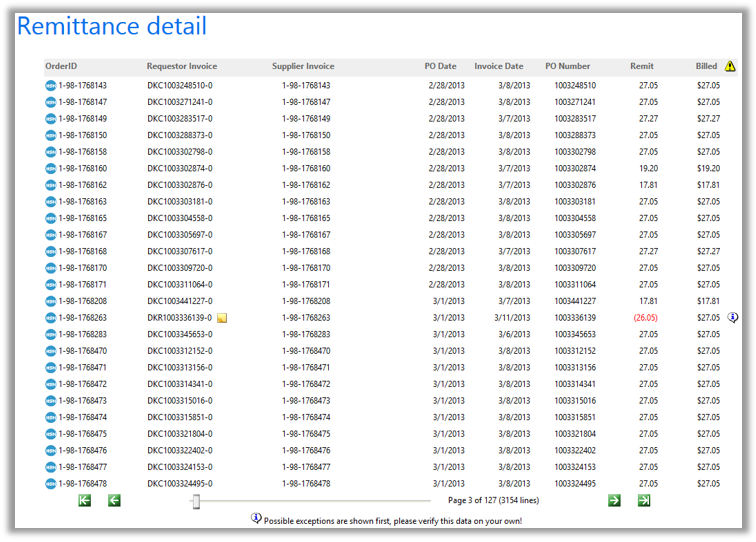
- Clicking on a line item will bring you to the “Remittance Detail” page, as shown below, where you can view every transaction record tied to a particular remittance directly on VendorBridge. Alternatively, you can click the Microsoft Excel icon, as shown above, to download the Remittance Detail as a spreadsheet.
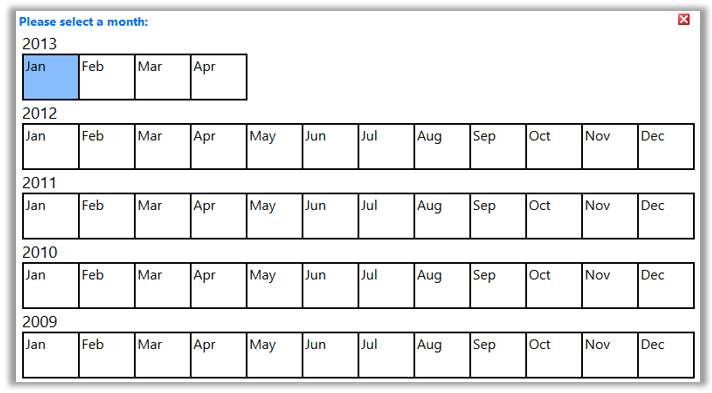
- You can also navigate to a previous month. To do this click on the calendar icon as shown in the figure in Step 2, and a new screen will appear allowing you to select a month and year you would like to view, as shown below. Clicking on a month will bring you back to the Remittances screen for that time frame.
Still stuck?
Tell us what you tried and we will take it from there. We will know which article you were reading.